
Configure Autopilot Pre-requisites
As this tenant is going to be used to test Autopilot scenarios there are a few pre-requisites needed as documented in Windows Autopilot requirements | Microsoft Learn. In particular in a fairly open network without several controls, the configuration section is where most of the preparation work will be needed.
Configure Microsoft Entra automatic enrollment
The first piece is to allow devices to be automatically enrolled in Intune. This is done through the Entra portal.
- Navigate to Entra ID > Mobility (MDM and WIP) > and select Intune which should take you to Microsoft Intune - Microsoft Azure.
- Our MDM user scope is going to be left at the default of All as this is a test scenario. A particular group(s) could be configured with Some to specify which users can enroll in Intune.
-
Note this applies to both Entra joined corporate owned devices and bring your own device.
-
- Configure Device Settings. Under Entra ID > Manage > Devices > Device Settings Devices - Microsoft Azure you can also specify all or select groups for Join and Registration. We will leave the default of All users allowed to do both. The setting to join a device can be overridden with Conditional Access policies so can be left at No and still require MFA.
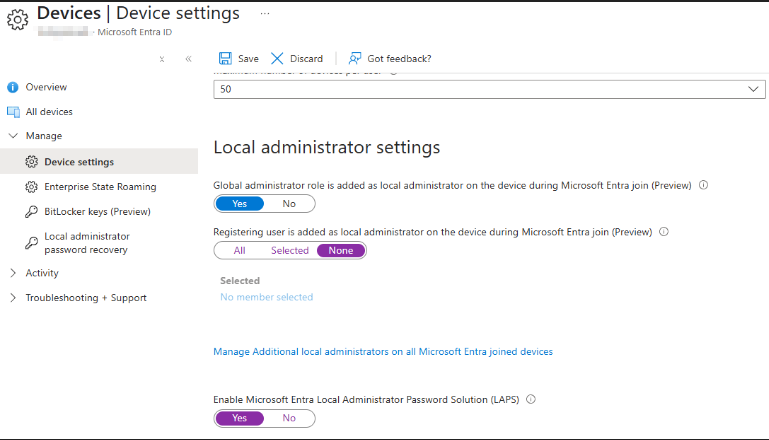
- We will leave the Global Admin groups as a local admin on the workstation but not allow the registering user to be added as local admin.
- As additional users that are not Global Admins will need rights select Manage Additional local administrators or all Microsoft Entra joined devices.
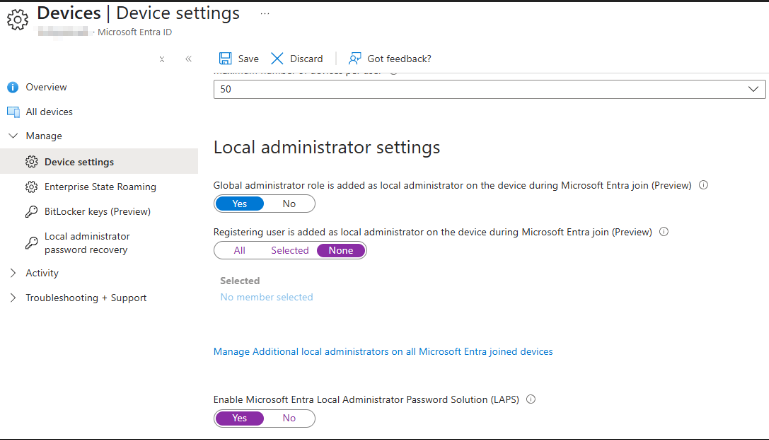
- This will allow selected users and/or groups to be added. This will add the users to the Microsoft Entra Joined Device Local Administrator role which grants some read permissions. Device Administrators - Microsoft Azure
- As we'll be using LAPS to manage local admin passwords we'll toggle on the setting while here.
- Save the settings
Step up from Windows Pro to Enterprise
Windows subscription activation | Microsoft Learn
Configure Microsoft Entra Custom Branding
Add company branding to your organization's sign-in page - Microsoft Entra | Microsoft Learn
Device Registration
For the Windows 11 systems that will be utilized to be enrolled and eligible for Autopilot, a hardware hash will need to be updated. There are a few ways that this can be done documented in Configure Windows Autopilot profiles | Microsoft Learn, I will be using a script published by Microsoft to upload the hashes directly to Intune. The article below has the following code snippet that can be used:
[Net.ServicePointManager]::SecurityProtocol = [Net.SecurityProtocolType]::Tls12
 Set-ExecutionPolicy -Scope Process -ExecutionPolicy RemoteSigned
 Install-Script -Name Get-WindowsAutopilotInfo -Force
 Get-WindowsAutopilotInfo -Online
The first time this is executed on a device some prompts are needed to install the necessary components for NuGet and the script as well as a one-time registration to grant admin consent. This does also include the WindowsAutopilotIntune module.
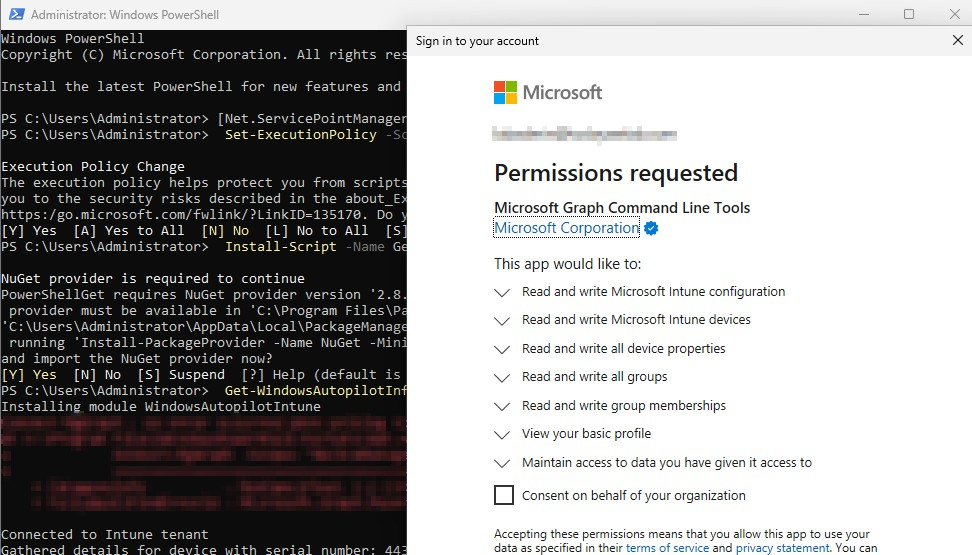
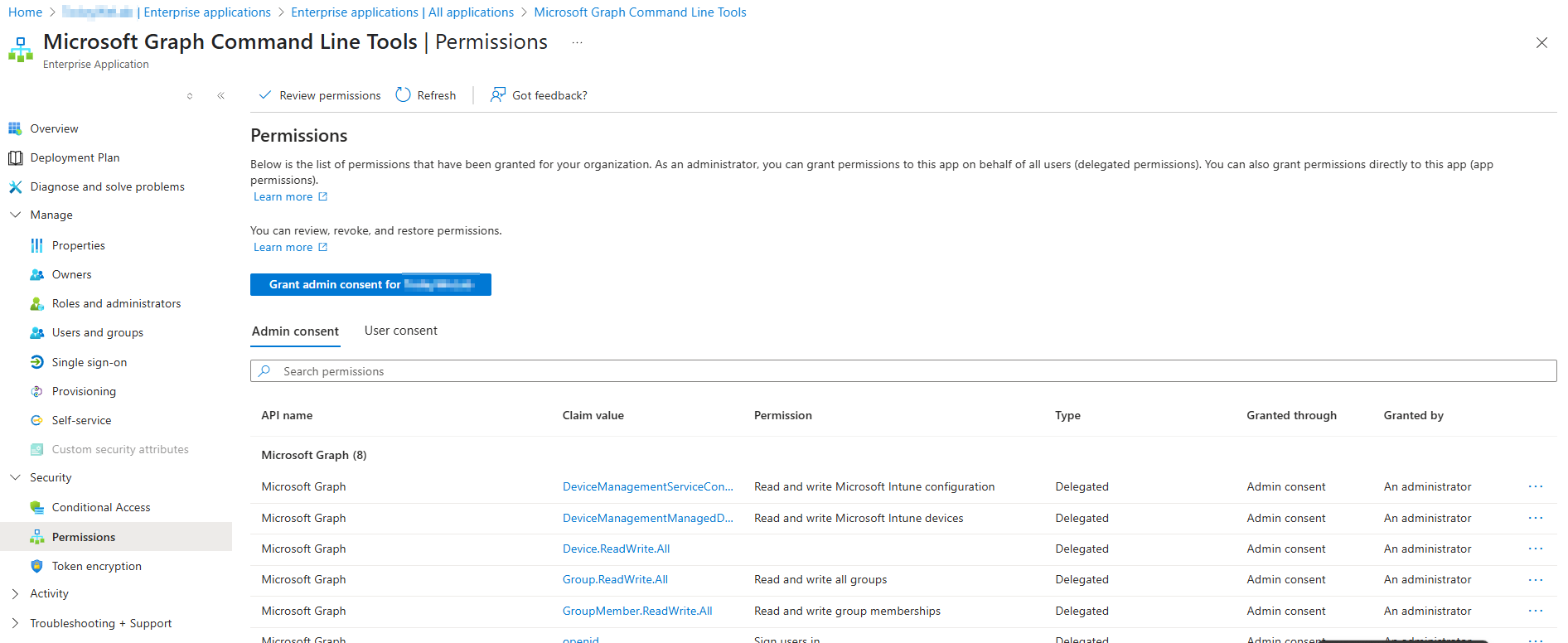
After consenting on behalf of the organization, an Enterprise Registration with the required permissions.
Once the script completes you can see the Serial number, make, and model of the device in Windows Autopilot devices - Microsoft Intune admin center. Additional details can be found here: Windows Autopilot user-driven Microsoft Entra join - Step 3 of 8 - Register devices as Windows Autopilot devices | Microsoft Learn
No Comments