
Turn off Security Defaults
Newly created tenants have a set of default security settings in place to help protect smaller organizations who may not be experienced in configuring necessary protections for Microsoft 365. However, with these defaults configured a number of the security settings are also disabled. These defaults require all users to register with multi-factor authentications (MFA), enforces MFA for those with administrative roles, MFA required for other users when needed, blocking legacy authentication protocols, and protections for some admin portals. If the defaults are left enabled, conditional access rules can't be enabled so these will need to be disabled if desired. More details can be found at Providing a default level of security in Microsoft Entra ID - Microsoft Entra | Microsoft Learn.
- To disable the security defaults, navigate to https://portal.azure.com.
- Go to the Microsoft Entra ID blade.
- Expand Manage > Properties.
- At the bottom of the page select "Manage security defaults".

- Select Disabled from the dropdown. Microsoft warns that MFA and security are important and requires a justification for disabling the defaults. In this case, we want to leverage Conditional Access Policies.
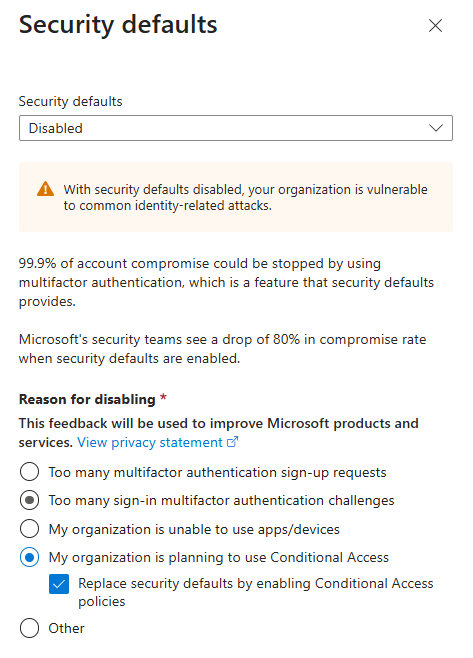
-
Save the changes and confirm again you really want to disable the defaults.
- If you selected the option to replace security defaults with Conditional Access policies, 4 rules will be created and enabled out of the box. These can't be deleted but can be turned off if replaced with similar rules.
- Block legacy authentication
- Multifactor authentication for Azure Management
- Multifactor authentication for admins
- Multifactor authentication for all users

